How to Speed Up a Slow Laptop Without Buying a New One
Before you start shopping for a replacement, know this: most sluggish laptops are not actually dying. They are drowning in background clutter, startup bloat, and settings that were never optimized in the first place. Work through the fixes below in order, from quickest to most involved, and there is a good chance your current laptop has a lot more life left in it than you think.
Start With a Real Restart
This sounds almost too simple to matter, but if your laptop has been asleep for days rather than fully restarted, do that first. A full restart clears memory leaks, kills stuck background processes, and finishes installing pending updates that quietly slow everything down in the background. It costs nothing and takes two minutes, so it is always worth ruling out before anything else.
Check What Is Actually Running in the Background
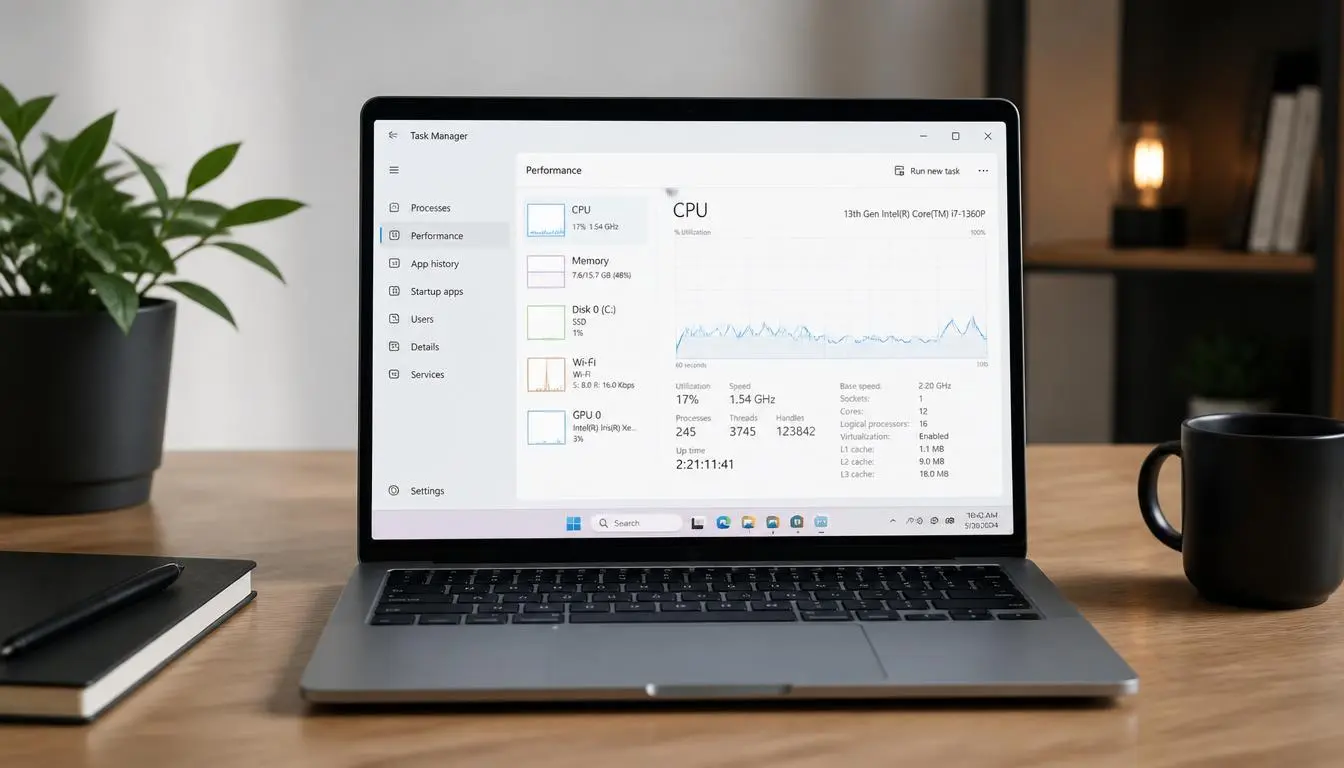
Open Task Manager on Windows or Activity Monitor on a Mac and take an honest look at what is consuming CPU and memory right now. It is common to find several apps running that you forgot were even open, quietly eating resources the rest of your system needs.
While you are in there, tackle two related problems:
- Too many browser tabs. Every open tab consumes RAM whether you are actively using it or not. If you regularly keep twenty or more tabs open, close what you do not need or use a tab suspender extension to put inactive ones to sleep.
- Unused browser extensions. Extensions run in the background on every page you visit, even ones you installed once and forgot about. A quick audit of your browser’s extension list often turns up several worth removing.
Trim Your Startup Programs
A laptop that takes forever to boot is often loaded with programs launching automatically the moment you turn it on. On Windows, open Task Manager and go to the Startup tab to see everything set to launch at boot, then disable anything you do not need immediately. On a Mac, check System Settings, then General, then Login Items, and remove anything unnecessary from that list.
This single fix is one of the most noticeable improvements you can make in under ten minutes, particularly on older machines with limited processing power to spare during startup.
Free Up Disk Space
A nearly full drive slows down far more than just storage. It affects how efficiently your entire system can operate, since the drive needs free space to manage temporary files and virtual memory properly.
A few quick wins here:
- Uninstall applications you no longer use
- Clear your browser cache and reset browser settings if it has been a long time
- Turn on Storage Sense on Windows or use built in storage management tools on a Mac to automatically clear temporary files and old downloads
- Delete large files you no longer need, such as old downloads or duplicate media
Adjust Your Power Settings
Many laptops ship with energy saving power modes active by default, which intentionally throttles performance to extend battery life. If your laptop is usually plugged in rather than running on battery, switching to a higher performance power plan can noticeably improve responsiveness.
On Windows, this is found under Settings, then System, then Power and Battery, then Power Mode. Some laptops even include a hidden Ultimate Performance plan that prioritizes raw speed over battery efficiency entirely. On a Mac, check your battery and power adapter settings for any energy saving features you can turn off while plugged in.
Defragment Your Drive, But Only If It Is a Traditional Hard Drive
If your laptop still uses a traditional spinning hard drive rather than a solid state drive, defragmentation can genuinely help, since it reorganizes scattered file pieces so the drive can read them more efficiently. On Windows, search for Defragment and Optimize Drives, select your drive, and run Optimize.
If your laptop uses an SSD, skip this step entirely. Defragmenting an SSD does not improve performance and can actually add unnecessary wear to the drive.
Clean Out the Dust
If your fans sound like they are working overtime but performance still feels sluggish, dust buildup inside the laptop may be causing thermal throttling, a protective slowdown that kicks in when internal components run too hot. With the laptop powered off, a can of compressed air aimed into the vents can dislodge built up dust and noticeably improve airflow. If you are comfortable opening the back panel, gently cleaning the fan blades directly can help even more, though this is optional for most users.
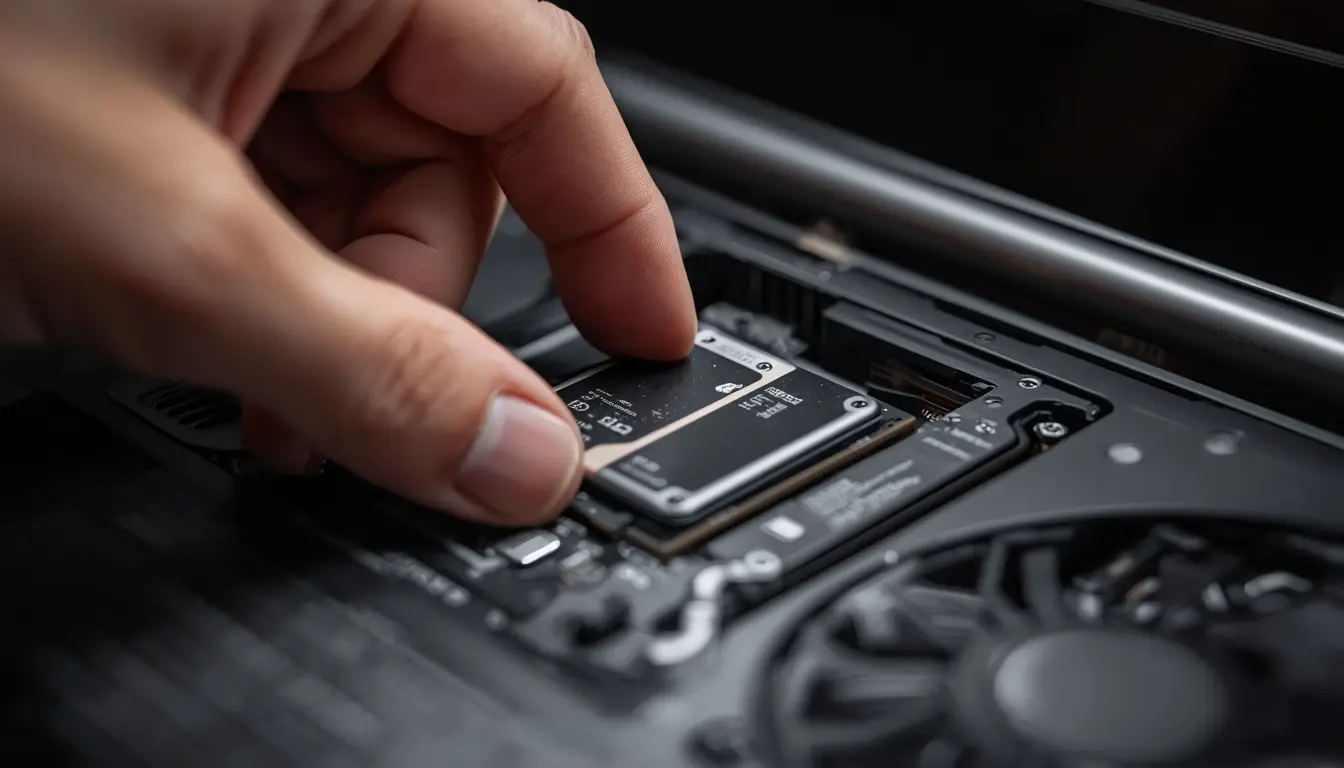
When a Small Hardware Upgrade Makes More Sense Than a New Laptop
If you have worked through the software fixes above and your laptop is still noticeably slow, a targeted hardware upgrade is often far cheaper than replacing the whole machine.
Upgrading to a solid state drive typically delivers the single biggest performance improvement available, since it dramatically speeds up how quickly your system boots and loads applications compared to a traditional hard drive.
Adding more RAM helps significantly if your laptop struggles when multitasking or running several applications at once. A laptop running on 4GB or less will often feel dramatically different jumping to 8GB, and even moving from 8GB to 16GB helps noticeably for heavier workloads.
Both upgrades combined typically cost a fraction of what a new laptop would, and many Windows laptops support both upgrades, though this varies by model, so check your specific laptop’s specifications before purchasing anything.
When It Might Actually Be Time to Replace It
These fixes solve the majority of slowdown issues, but there are a few situations where replacement genuinely becomes the more sensible option: if your laptop’s RAM cannot be upgraded at all, if there is no available slot for an SSD, if hardware components are visibly failing, or if modern software and updates no longer run properly on the device regardless of optimization. In those specific cases, no amount of software cleanup will fully solve the underlying problem.
For most everyday slowdowns, though, working through cleanup, startup trimming, and a possible SSD or RAM upgrade solves the issue and can add real years of useful life to a laptop that still has plenty left to give.