How to Transfer Data from an Old Phone to a New Phone
Do not wipe your old phone yet. That single rule prevents more phone-switching disasters than any other tip, because the most costly mistakes happen at the very end of the process, when the new phone looks ready and the old one suddenly feels disposable. A smooth switch follows a simple order: back up first, transfer second, verify third, and wipe last. Everything below is built around that sequence, and it works whichever route you are taking.
Pick Your Route First
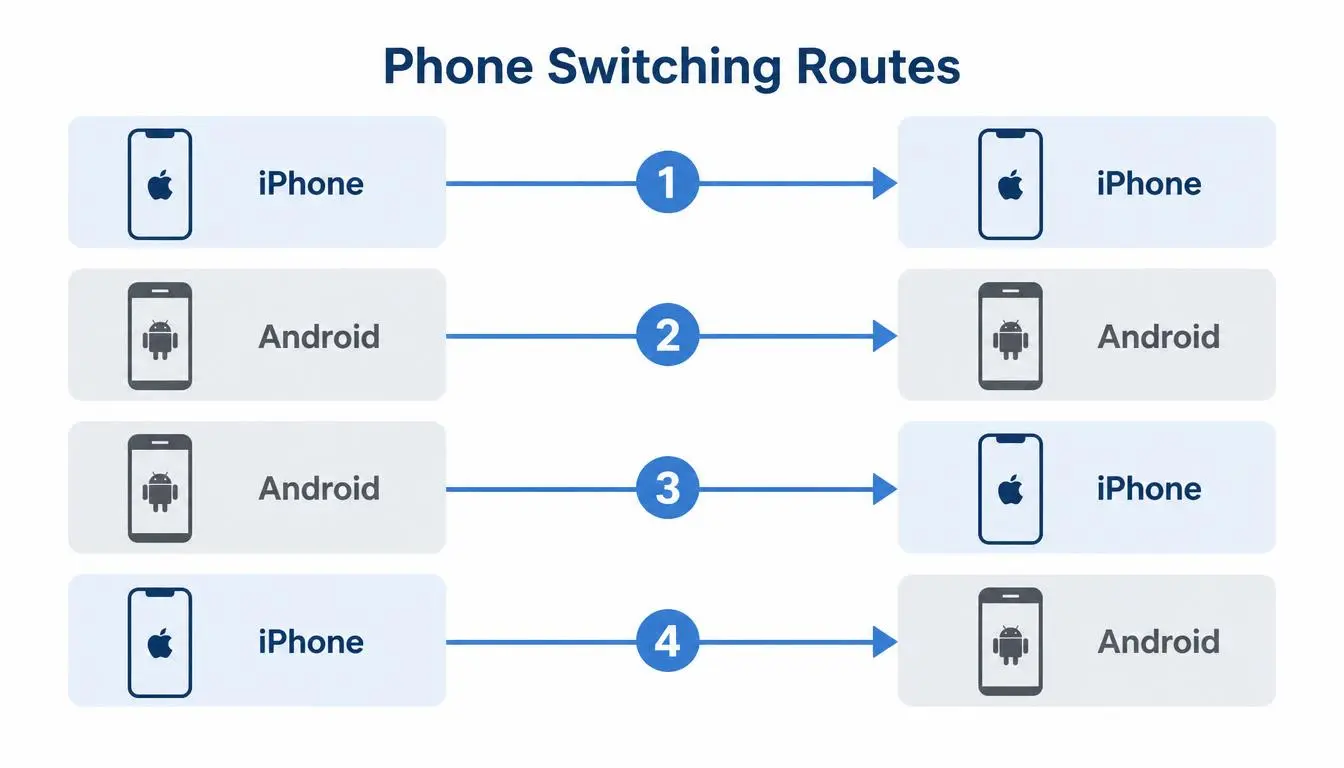
The right method depends on which phone you are leaving and which one you are joining. Every route below uses a tool built into the phones themselves, so you do not need to buy or install anything unusual.
| Moving from | Moving to | Easiest built in route |
|---|---|---|
| iPhone | iPhone | Quick Start, or restore from an iCloud or computer backup |
| Android | Android | The “copy apps and data” option during setup, using a Google backup or your phone maker’s transfer tool |
| Android | iPhone | Apple’s Move to iOS app during iPhone setup |
| iPhone | Android | The “set up from an iPhone” option during Android setup, ideally with a cable |
Before You Start: Five Preparations That Prevent Most Problems
Whichever route you choose, a little preparation makes the transfer far more reliable.
- Update both phones to their latest software, which avoids many transfer glitches
- Charge both phones fully, or keep them plugged in, since a dead battery mid-transfer can leave both phones in a confused, half-finished state
- Make a fresh backup of the old phone, and confirm it actually completed before you do anything else
- Check your cloud storage, because a backup or restore can fail if your account is out of space
- Use a trusted network, ideally your home Wi-Fi, not a shared one, a point explained in is public Wi-Fi safe
That backup step is the important one, since your backup is the safety net if a transfer fails or you accidentally erase the old phone too soon. If you have not set up regular backups, how to back up your phone data the right way walks through both cloud and computer options. It also helps to clear out clutter before you begin, since less data means a faster, smoother move, and how to free up storage space on your smartphone shows how to trim duplicates and unused apps first.
Moving From iPhone to iPhone
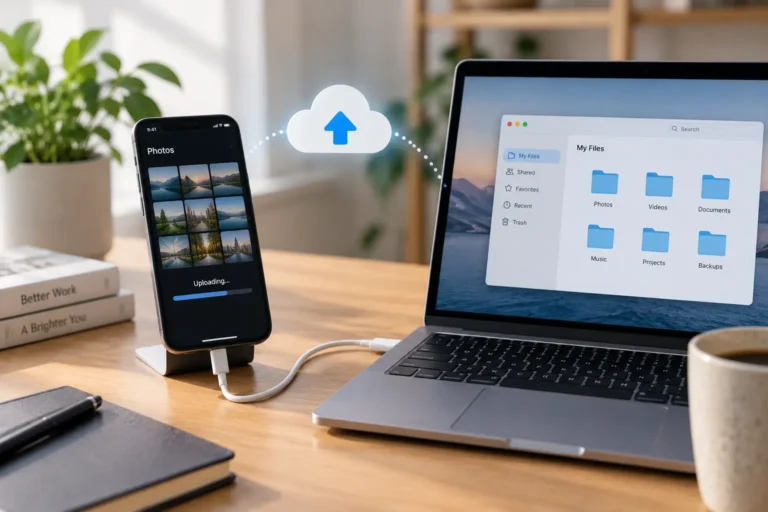
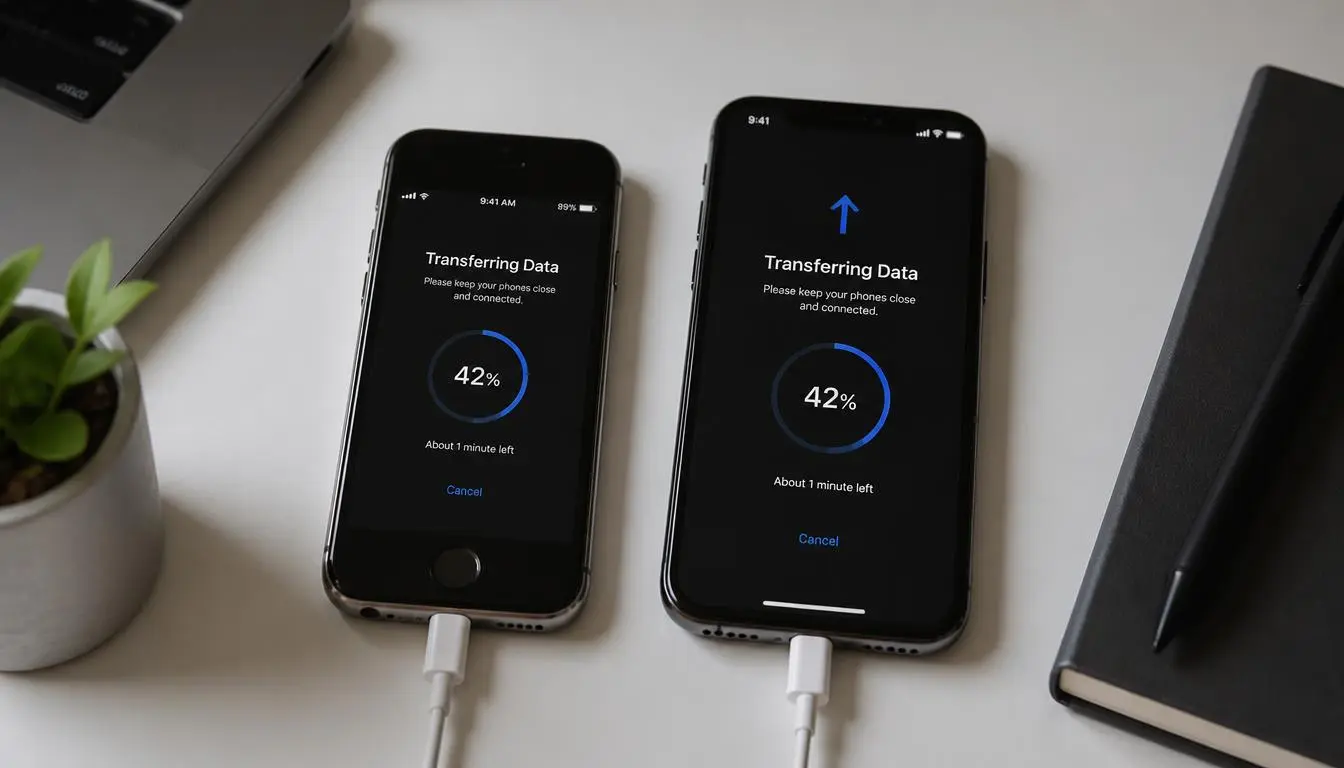
Quick Start is the smoothest option. With your old iPhone on and near the new one, follow the prompt that appears on the old phone during the new phone’s setup, and choose to transfer directly. Keep both devices close together and plugged in until the process finishes, since you cannot use either one until the transfer completes, and the time it takes depends on how much data you have and your network conditions.
If Quick Start is not available, or if you already finished setting up the new phone, you have two backup based alternatives. You can restore from an iCloud backup during setup, or you can back up to a computer and restore from that backup, which works well if your iCloud storage is full.
Moving From Android to Android
During setup on the new phone, choose the option to copy apps and data, then follow the instructions to bring your information over. If you have a Google backup turned on, signing into the same Google account restores your contacts, calendar, and many settings automatically. Many phone makers also provide their own transfer tool, which can move data over a cable or wirelessly, and some let you choose exactly what to copy.
If something seems to be missing afterward, the usual cause is that Google backup was not switched on before the move, not that the data has vanished. That is another reason to confirm your backup before starting.
Moving Between iPhone and Android
Switching platforms takes a little more care, but the official tools handle most of it. From Android to iPhone, install Apple’s Move to iOS app on your Android phone, then follow the prompts during the iPhone’s initial setup. From iPhone to Android, choose the option to set up from an iPhone during Android setup, and use a cable if you can, since a wired transfer is generally faster and more reliable than a wireless one.
Some data needs separate handling when you cross platforms. Certain messaging apps, including WhatsApp, use their own transfer process for chat history, which you should start during setup instead of assuming it will come along automatically. If your SIM uses an eSIM, whether it transfers automatically depends on your phone and your carrier, so check that in advance.
Verify Everything Before You Erase Anything
Once the transfer finishes, resist the urge to wipe the old phone right away. Spend some time confirming that everything actually arrived. Scroll through your entire photo library rather than only the first few rows, check that your contacts are all there, open your key apps, and look at your recent messages. Many people keep the old phone untouched for a day or more while they use the new one normally, since problems tend to reveal themselves in real use.
A few items deserve their own check because they often do not move automatically. Authenticator apps that generate two factor codes may need to be set up again on the new phone, depending on the app, and you should confirm they work before the old phone is erased, since losing access can lock you out of important accounts. Mobile wallet cards, banking apps, and passwords stored in a password manager also deserve a quick test.
Wipe the Old Phone Safely
Only once you are certain everything is working should you erase the old device, particularly if you plan to sell it, trade it in, or give it away. Sign out of your accounts, turn off any device locking or tracking feature tied to your account, and then perform a factory reset so your personal information is fully removed. Remove your SIM card if the phone uses one. If the old phone is going to be kept as a spare, it is still worth signing out of accounts you no longer want linked to it.
Frequently Asked Questions
How long does it take to transfer data to a new phone?
It depends on how much data you have and the method you use. A small amount of data can move in minutes, while a large photo library over a wireless connection can take considerably longer, which is why keeping both phones plugged in matters.
Will my messaging app chats transfer automatically?
Not always. Some messaging apps, including WhatsApp, have their own transfer or backup process, particularly when you switch between iPhone and Android, so check the app’s own instructions before you erase the old phone.
Can I transfer data without a cable?
Yes. Most routes offer a wireless option, and cloud backups let you restore over Wi-Fi. A cable is often faster and more reliable when moving large amounts of data or switching platforms, so it is worth using one if you have it.
What if my old phone is broken or will not turn on?
Your cloud backup becomes essential. If you have a recent iCloud or Google backup, you can sign into the same account on the new phone and restore from it during setup, without needing the old phone at all.
When is it actually safe to wipe the old phone?
Only after you have confirmed that your photos, contacts, apps, messages, and account logins are all working on the new phone, ideally after using it normally for a day or more.