Is Public Wi-Fi Safe? What You Need to Know
Public Wi-Fi is safer than the scare stories make it sound, and less safe than “everyone uses it, so it must be fine.” The honest answer sits in the middle, and it depends on what you do while connected. It is also worth knowing that a lot of the loudest warnings online come from companies that sell VPN subscriptions, so it helps to separate the real risks from the sales pitch. Here is what actually matters, and what genuinely protects you.
What Has Actually Changed Over the Years
The old picture of a hacker casually reading everyone’s passwords off a café network is much less accurate today. Most websites now use HTTPS, which encrypts the connection between your browser and the site, so someone else on the same network cannot simply read what you type. You can spot it by the padlock icon and the “https” at the start of the address.
That said, HTTPS has limits. It protects your browser’s traffic to that specific site, not everything else running on your device, and not every app or service uses strong encryption. Someone controlling the network can also still see which sites you connect to, even if they cannot read the content. So the risk is lower than it used to be, but it is not zero.
The Real Risks, Ranked by How Much They Matter
Unlike your own home network, which you can lock down yourself, a public Wi-Fi network is a shared space you do not control. That is the root of every risk below.
| Risk | What it means | How much to worry | What actually helps |
|---|---|---|---|
| Fake hotspots (evil twin) | A network named to look like the café’s or airport’s, run by someone else | Realistic in busy places, since people join whatever looks right | Confirm the exact name with staff, avoid auto connect |
| Man in the middle | Someone positioned between your device and the internet | Much harder now thanks to HTTPS, but never ignore warnings | Stick to HTTPS, never click through certificate warnings |
| Unencrypted apps or sites | Traffic that is not properly protected | Depends on the app, so keep sensitive tasks off shared networks | Keep apps updated, use trusted apps |
| Fake login or update pages | A Wi-Fi sign in page asking you to install something | Real, and easy to fall for | Never install anything a Wi-Fi page asks for |
| Your own device settings | File sharing or nearby sharing left switched on | Easy to fix | Turn these off before connecting |
Why Fake Networks Deserve Extra Attention
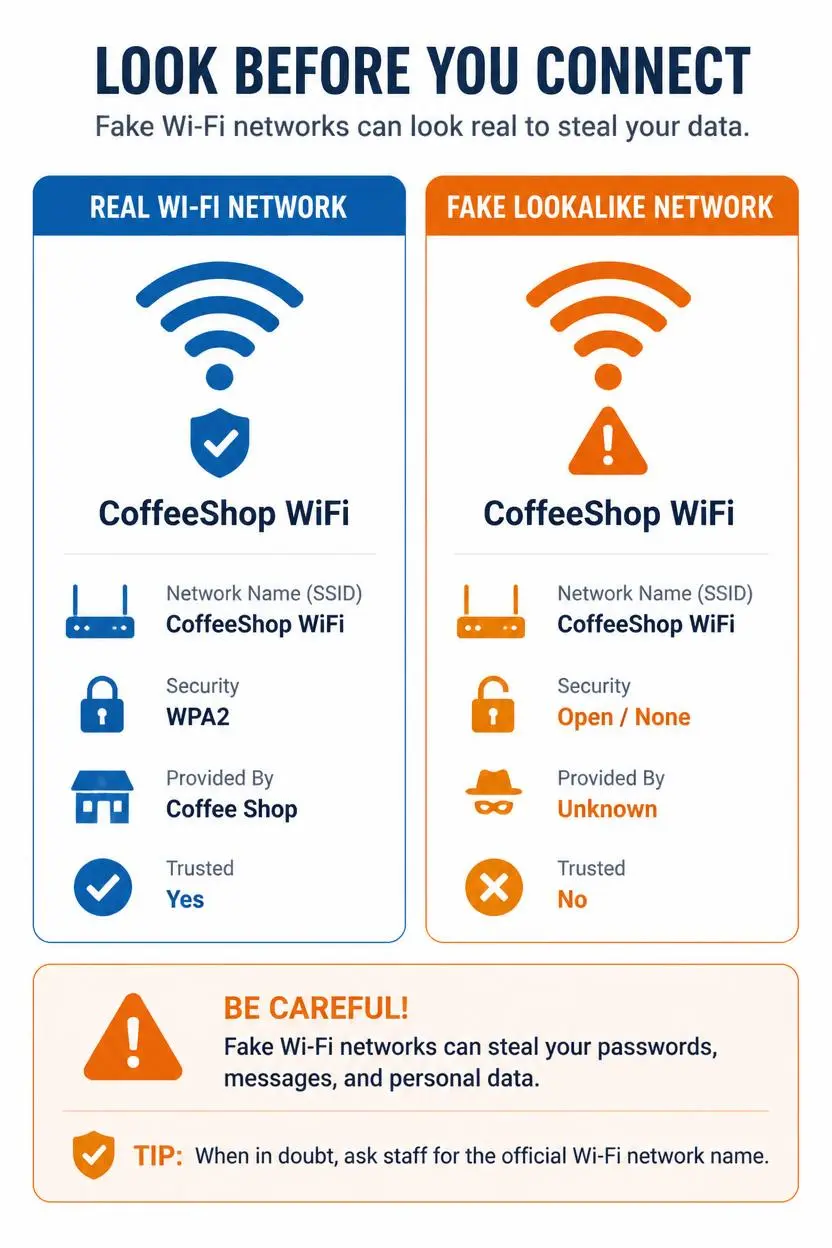
Of everything above, the fake network is the one worth understanding best, because it relies on a simple human habit: joining whatever looks right. A hotspot named something very close to a real business’s network can appear right beside the genuine one, and devices set to reconnect automatically may join without you ever choosing to. This is a man-in-the-middle attack in its simplest form, since the network owner can sit between you and everything you do.
The defense is refreshingly low tech. Ask staff for the exact network name, and be suspicious of near duplicates or slightly different spellings. Remember that a password on the network does not make it private either, since hotel and airport networks with passwords are still shared by many people at once. Once you are done, tell your device to forget the network so it never rejoins on its own.
Do You Actually Need a VPN?
A VPN encrypts your traffic between your device and the VPN provider’s server, which hides your activity from whoever runs the local network. As an extra layer on public Wi-Fi, especially for apps beyond your browser, that can be genuinely useful, and it is a reasonable choice if you regularly work from cafés, airports, or hotels.
It is not a magic shield, though. A VPN moves trust from the local network to the VPN company itself, since that company can see your traffic instead. Choose a reputable paid service with a clear privacy policy, and be cautious of free VPNs, which often make money in ways that undercut the privacy you are trying to gain. A VPN also cannot stop you from typing a password into a fake page, which is why the habits below matter regardless of whether you use one.
Seven Habits That Cover Most of the Risk
- Confirm the network name with staff before you connect
- Turn off auto connect for public networks and forget the network afterward
- Stick to HTTPS and never click through a certificate warning
- Use a mobile hotspot or cellular data for banking and anything sensitive
- Turn off file sharing and nearby sharing before joining a shared network
- Keep your device, browser, and apps updated so known weaknesses are patched
- Protect key accounts with strong, unique passwords and two factor authentication, since even if a password is captured, a second factor limits the damage, something covered in how to create strong passwords you can actually remember
Of these, the mobile hotspot deserves a special mention. Using your own phone’s connection for anything important sidesteps shared network risks entirely, since you control the network, and it costs nothing on most plans.
Treat Wi-Fi Sign In Pages Like Suspicious Emails
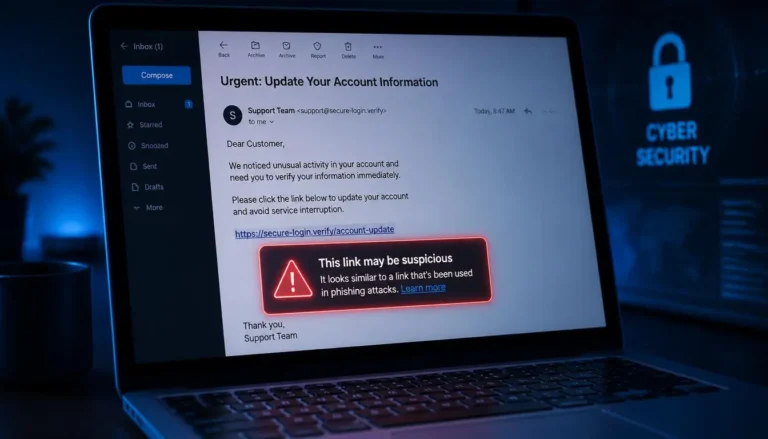
Many public networks send you to a sign in page asking for an email address or phone number. That is normal, but keep it minimal and never install software or a browser extension that a Wi-Fi page requests. The same red flags that apply to a suspicious message apply here too: urgency, unusual requests, and anything that does not match the venue, all of which are covered in how to spot a phishing email before it’s too late.
If Something Feels Off Afterward
If you notice unfamiliar logins, unexpected password reset emails, or apps you do not remember installing after using a public network, act promptly. Change your important passwords from a trusted network, and review the warning signs listed in signs your phone has been hacked and what to do to work out whether anything needs cleaning up.
Why Your Own Network Is a Different Story
Your home network is one you can secure yourself: encryption set to WPA3 or at least WPA2, a strong password, updated router firmware, and a changed admin login. Those steps are covered in how to set up a home Wi-Fi network for maximum speed, and they matter because the devices that connect safely at home are the same ones you carry into public spaces. Public networks give you none of that control, which is exactly why habits like confirming names, turning off auto connect, and saving sensitive tasks for your own connection do so much of the work.
A useful way to think about it is to treat every shared network like a crowded room. It is perfectly fine for casual conversation, but it is not the place to read out your card number. That simple mental picture makes the right choice obvious in most situations, without needing to remember a long list of technical rules.
Decision Guide: What Is Fine and What Can Wait
Generally fine on public Wi-Fi, with the basics above:
- Reading news, streaming, and general browsing over HTTPS
- Checking a map, a flight status, or a menu
- Casual messaging on trusted apps
Better to wait or switch to mobile data:
- Online banking and payment transfers
- Logging in to work accounts with sensitive information
- Entering card numbers on sites you do not know well
- Tax, medical, or other highly personal portals
The Bottom Line
Public Wi-Fi is not a hacker paradise, and it is not fully private either. Most everyday browsing is reasonably safe thanks to HTTPS, while the genuine risks come from fake networks, careless settings, and sensitive tasks done in shared spaces. A handful of simple habits, with a reputable VPN as an optional extra, covers nearly all of it, and anything truly sensitive is best saved for your own connection.