How to Set Up a Home Wi-Fi Network for Maximum Speed
Most home Wi-Fi problems have nothing to do with your internet plan and everything to do with a router that was plugged in once, shoved into a corner, and never touched again. A handful of specific settings, checked in order, will get you closer to the speed you are actually paying for than upgrading your plan ever will.
Quick Take
Router placement matters more than almost any setting you can change. Put it in a central, elevated, open spot, away from walls, metal, and other electronics. From there, keep firmware updated, use the 5GHz band for close-range speed and 2.4GHz for range, pick a less congested channel, and secure the network with WPA3 or WPA2. If you have a large home with persistent dead zones after all of that, a mesh system solves what a single router physically cannot.
Fix Your Router’s Placement First
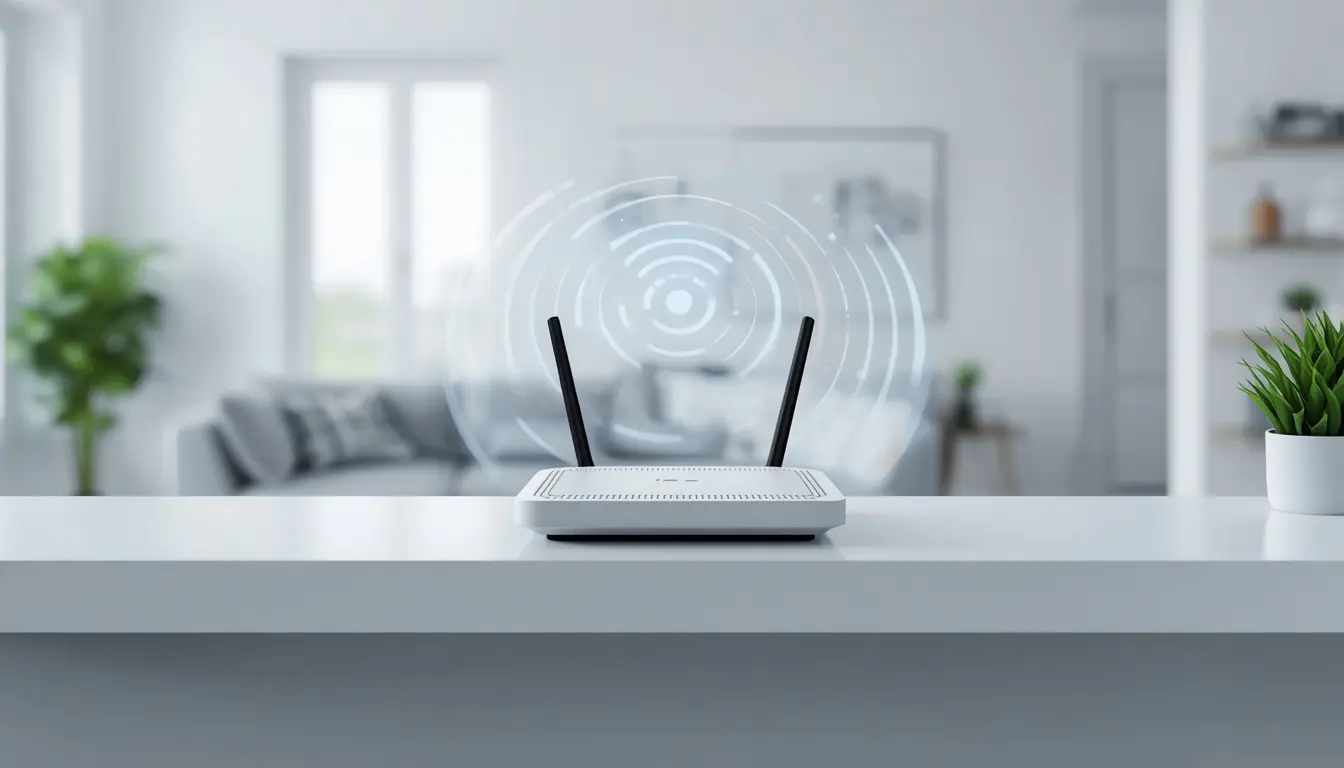
Wi-Fi is a radio signal, and radio signals degrade the moment they have to fight through walls, floors, metal appliances, or a cabinet door. A router tucked into a closet or hidden behind the TV can lose 50 percent or more of its effective signal strength compared to the same router sitting in the open.
The general placement rule that consistently produces better results: central location in the home, elevated roughly five to seven feet off the floor, in open space away from thick walls and large metal objects. If your home has multiple stories, position the router as close to the middle floor as your cabling allows, since Wi-Fi radiates outward in a rough sphere and struggles more with floors than most people expect.
If your router has external antennas, their angle matters too. For a single story home, point both antennas straight up for the widest horizontal coverage. In a multi story home, angling one antenna vertically and one horizontally tends to spread the signal more evenly between floors.
Update the Firmware
Router firmware is the software running the device itself, and outdated firmware is a surprisingly common cause of both slow speeds and random disconnections. Manufacturers release updates that fix bugs, patch security vulnerabilities, and sometimes meaningfully improve performance on existing hardware.
Check for updates either through your router’s admin panel or on the manufacturer’s support site, and enable automatic updates if your router supports them. This is one of the few fixes here that costs nothing and occasionally solves problems that look like a hardware issue but are not.
Understand the Difference Between 2.4GHz and 5GHz
Most routers sold in the past several years are dual band, broadcasting on both 2.4GHz and 5GHz simultaneously. These two bands behave very differently, and knowing when to use each makes a real difference.
5GHz offers faster speeds and significantly less interference, since fewer household devices, microwaves, cordless phones, and Bluetooth accessories, operate on this frequency. The tradeoff is range. 5GHz signals weaken faster through walls and over distance than 2.4GHz does.
2.4GHz travels farther and penetrates walls more effectively, which makes it the better choice for devices further from the router or on a different floor. The tradeoff here is congestion. This band is more crowded, both from your own devices and often from neighboring networks, which can slow things down in dense apartment buildings especially.
If your router supports band steering, it will typically move capable devices to whichever band performs best automatically. In crowded environments, manually assigning specific devices to specific bands sometimes outperforms letting the router decide on its own.
Choose a Less Congested Channel
Within each band, your router operates on a specific channel, and if your neighbors’ routers happen to be broadcasting on the same one, both networks slow each other down, similar to two conversations happening on top of each other.
On the 2.4GHz band, stick to channels 1, 6, or 11. These are the only three channels on this band that do not overlap with each other, which avoids a significant source of interference. On 5GHz, channels such as 36, 40, and 44 tend to offer more stable performance, and this band generally has enough available channels that manual selection matters less than it does on 2.4GHz.
A free Wi-Fi analyzer app can scan your surrounding area and show you exactly which channels are heavily used nearby, taking the guesswork out of this step entirely.
Lock Down Channel Width Too
Newer routers let you adjust channel width in addition to the channel itself. Wider channel widths, 80MHz or 160MHz on 5GHz, promise higher theoretical speeds, but they also pick up interference from a much wider range of nearby networks. In most home environments, a 40MHz width on 5GHz and a 20MHz width on 2.4GHz strikes a more reliable balance than chasing the highest possible number.
Secure the Network Properly
An unsecured or weakly secured network is not just a privacy risk. Unauthorized devices connecting to your Wi-Fi consume bandwidth that could otherwise go to your own devices, quietly slowing things down without any obvious explanation.
Set your router’s security protocol to WPA3 if it is available, or WPA2 at minimum, and choose a genuinely strong password rather than something predictable. It is also worth changing your router’s default admin username and password, since these default credentials are widely known and represent an easy entry point if left unchanged.
When One Router Is Not Enough
If you have worked through every setting above and still have persistent dead zones, particularly in a larger home, a multi story house, or a space with unusually thick walls, the problem is likely physical coverage rather than configuration. At that point, you are choosing between a range extender and a mesh system.
Range extenders are the cheaper, simpler option. They grab your existing signal and rebroadcast it into a dead zone. The tradeoff is that many extenders create a separate network name, meaning your devices will not automatically switch to the stronger signal as you move through your home, and because many models use the same radio to both receive and rebroadcast the signal, they often cut throughput by roughly half on that hop.
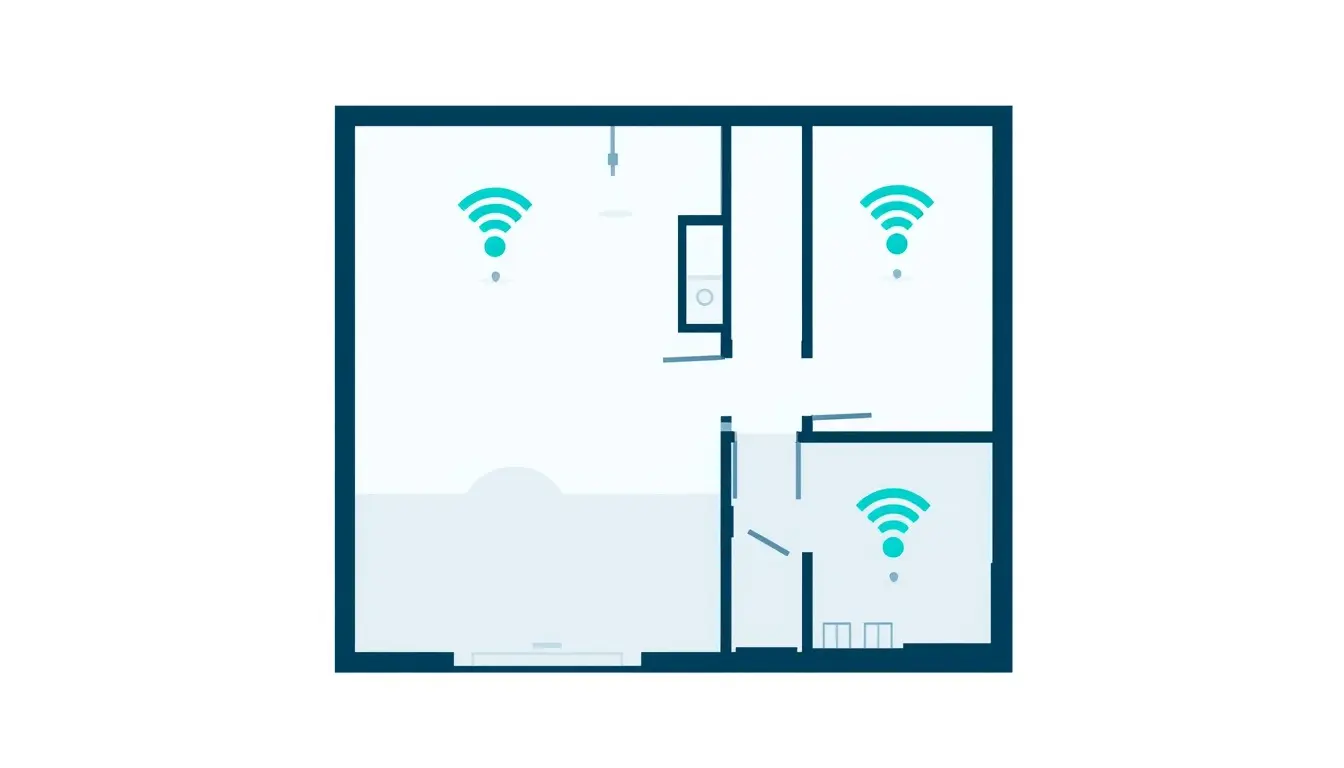
Mesh systems use multiple coordinated nodes placed throughout your home to create a single, unified network. Devices automatically connect to whichever node is closest and strongest, without you doing anything manually. Mesh systems typically cost significantly more than a single extender, often five to ten times as much, but they scale far better in larger homes, generally include modern security features like WPA3 by default, and largely manage and update themselves after the initial setup.
For a small apartment with one weak spot, an extender is often a perfectly reasonable, budget friendly fix. For a larger home with multiple dead zones or a lot of connected devices, a mesh system solves the underlying coverage problem in a way a single router or extender structurally cannot.
Frequently Asked Questions
Does router placement really make that big of a difference?
Yes. Moving a router from an enclosed cabinet or corner to an open, central, elevated spot can recover signal strength that was previously being lost to walls and interference, sometimes as much as half the router’s effective range.
Should I use 2.4GHz or 5GHz for most of my devices?
Use 5GHz for devices near the router that need speed, like a streaming device or gaming console in the same room. Use 2.4GHz for devices farther away or on a different floor, where range matters more than raw speed.
How do I know if I need a mesh system instead of a single router?
If you have persistent dead zones after optimizing placement, channels, and bands, and your home is large, multi story, or has unusually thick walls, a mesh system is generally the more effective long term fix compared to adding a basic extender.