How to Back Up Your Phone Data the Right Way
Everyone knows they should back up their phone. Almost nobody actually does it consistently, right up until a cracked screen, a failed update, or a lost device turns years of photos, messages, and contacts into a genuine emergency. The good news is that a proper phone backup takes less than ten minutes to set up correctly, and once it is running automatically, you never have to think about it again.
Quick Take
The most reliable backup strategy combines automatic cloud backup, iCloud for iPhone or Google Drive for Android, with an occasional manual backup to a computer for extra security and unlimited local storage. Cloud backup alone is enough for most people, but pairing it with a computer backup protects you against the storage limits and subscription costs that come with free cloud tiers.
Why One Backup Method Is Not Always Enough
Cloud backups and computer backups each solve a different problem, which is exactly why relying on only one leaves a gap. Cloud backup happens automatically once set up, syncs quietly in the background, and lets you restore your data on any new device just by signing into your account. The tradeoff is storage. Free tiers are genuinely small, typically around 5GB for iCloud and 15GB for Google Drive, which fills up fast once photos and videos are involved.
Computer backup solves the storage problem entirely, since your available space is limited only by your computer’s hard drive rather than a subscription tier. The tradeoff here is convenience. It requires physically connecting your phone to a computer and remembering to do it periodically, rather than happening automatically in the background.
Understanding this tradeoff is the real reason a combined approach works better than picking just one method and assuming it covers everything.
How to Back Up an iPhone With iCloud
This is the fastest, most seamless method for most iPhone users, and it can be fully automated once configured.
- Confirm your iPhone is connected to a stable WiFi network
- Open Settings, tap your name at the top, then tap iCloud, then iCloud Backup
- Tap Back Up Now, and stay connected to WiFi until the process finishes
To make this fully automatic going forward, keep iCloud Backup toggled on in that same menu. Automatic backups then run whenever your phone is connected to power, connected to WiFi, and has its screen locked, with no further action needed from you. Before relying entirely on this method, check your available iCloud storage, since the free 5GB tier fills up quickly if you have a large photo library, and an incomplete backup due to insufficient space will not protect everything you actually need it to.
How to Back Up an iPhone to a Computer
A local backup provides a second layer of protection, along with unlimited storage limited only by your computer, and it is worth doing periodically even if iCloud backup is already active.
- Connect your iPhone to your computer using a certified cable
- On a Mac, open Finder and select your iPhone from the sidebar, then click the General tab. On a Windows PC, open iTunes, click the iPhone icon, then click Summary
- Select the option to back up to this computer rather than iCloud
- For added protection, select Encrypt Local Backup and set a password before starting
That last step matters more than it might seem. An encrypted local backup captures additional sensitive information, including saved passwords and certain health data, that an unencrypted backup skips entirely. If security is a priority, this small extra step meaningfully strengthens what actually gets protected.
How to Back Up an Android Phone With Google Drive
Google Drive backup is the standard, most reliable method for Android devices, and it covers the core categories most people actually care about protecting.
- Open Settings on your phone
- Tap Google, then tap Backup
- Toggle on Backup to Google Drive
Once enabled, this automatically saves contacts, photos, videos, calendar events, and select app data going forward. As with iPhone, check your available Google Drive storage periodically, since the free 15GB tier is shared across Drive, Gmail, and Google Photos combined, which can fill up faster than expected if you use all three regularly.
How to Back Up an Android Phone to a Computer
Since Android phones are not natively integrated with a specific computer operating system the way iPhones are with Mac, this process involves a bit more manual effort, though it is still straightforward.
- Connect your Android phone to your computer using a USB cable
- On your phone, select the option to transfer files or use the device as storage media when prompted
- Once your phone appears as a connected drive on your computer, manually copy and paste the folders or files you want backed up, such as your camera roll, to a folder on your computer
This method requires more hands on effort than the automatic Google Drive option, but it provides the same unlimited local storage advantage as an iPhone computer backup, without any cloud subscription involved.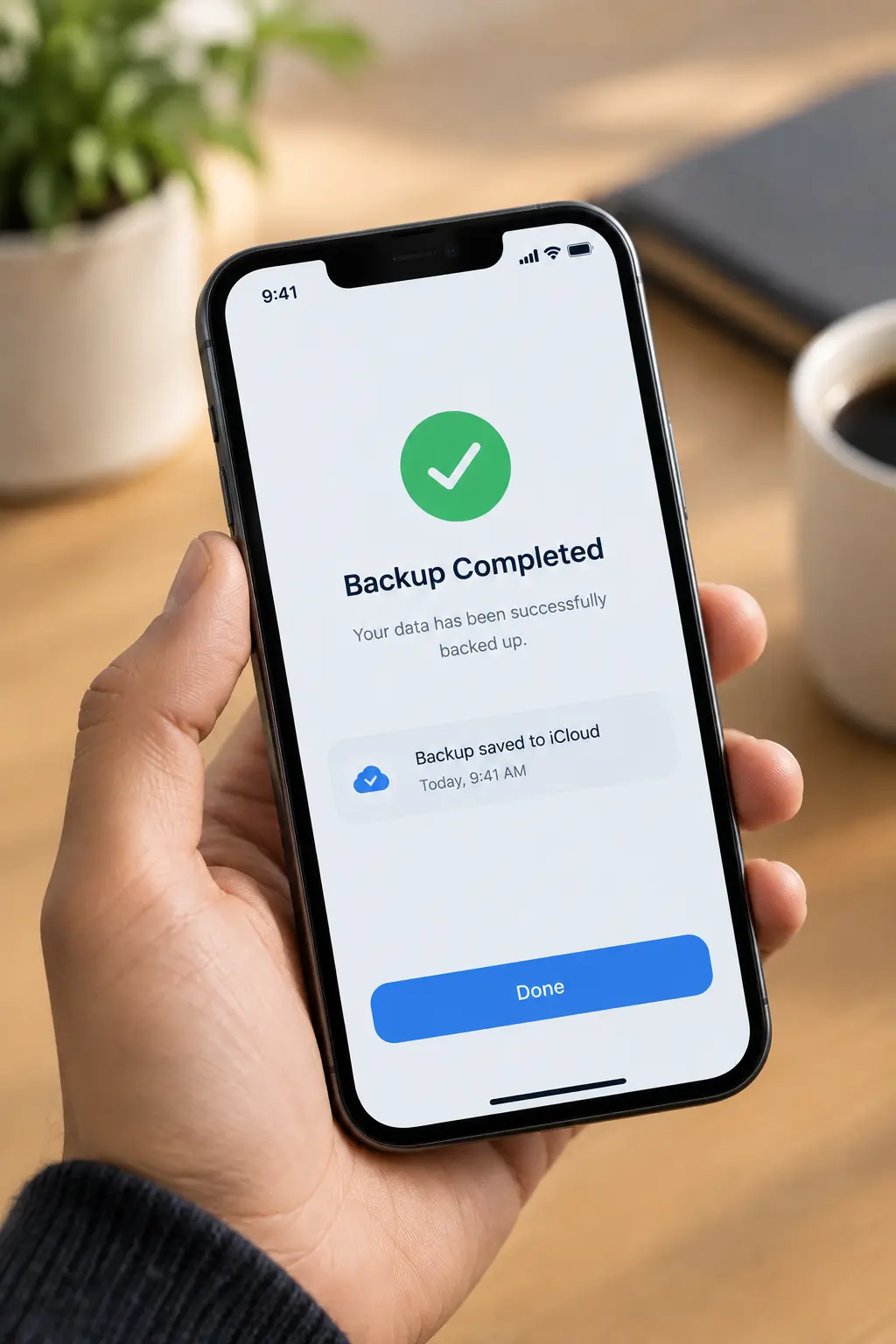
Always Verify Your Backup Actually Worked
A backup that silently failed partway through is arguably worse than no backup at all, since it creates false confidence. After completing any backup, take a minute to confirm it actually worked. For cloud backups, check your iCloud or Google account settings to confirm a recent backup timestamp and reasonable file size. For computer backups, briefly open the backup folder or file to confirm your data is genuinely there, rather than assuming the process completed successfully just because no error appeared.
When to Back Up, Beyond Just “Regularly”
Automatic cloud backup handles most day to day protection on its own, but a few specific moments call for a fresh manual backup regardless of your regular schedule: before installing a major operating system update, before a phone repair or screen replacement, before selling or trading in a device, and before installing any beta or pre release software, which carries a higher than normal risk of something going wrong. Treating these moments as mandatory backup checkpoints, on top of your regular automatic backups, closes the gap where most actual data loss happens.
Keep Your Backups Current, Not Just Present
Old, outdated backups create their own quiet risk, since restoring from one after months of accumulated messages, photos, and settings changes means losing everything created since that last backup point. Periodically check the date of your most recent backup rather than assuming it is current, and if you are managing multiple old backups taking up cloud storage, deleting outdated ones frees up space for the current, actually useful version going forward.
If your phone has ever shown warning signs worth investigating, review signs your phone has been hacked and what to do next, since backing up your data properly is one of the first steps recommended before a factory reset. For more Tech guides, visit Daily Anytime.
Frequently Asked Questions
How much free cloud storage do I get for phone backups?
iCloud provides 5GB of free storage, while Google Drive provides 15GB, shared across Drive, Gmail, and Google Photos combined. Both fill up quickly with a large photo or video library, which is why many people eventually pay for additional storage or supplement cloud backup with a computer backup instead.
Is cloud backup or computer backup more secure?
Both are reasonably secure when set up correctly, though they protect against different risks. Cloud backup is encrypted and protected from physical damage to your device, while an encrypted computer backup keeps your data entirely under your own control rather than stored on a third party server. Using both provides the strongest overall protection.
How often should I back up my phone?
If automatic cloud backup is enabled, it typically runs daily on its own whenever your phone is charging and connected to WiFi. For a computer backup, aim for at least once a month, plus before any major event like a repair or operating system update.
What happens if I don’t have enough cloud storage for a full backup?
The backup will either fail partway through or skip certain content, most commonly photos and videos, since these tend to take up the most space. Checking your available storage before relying on cloud backup, and deleting old unnecessary backups, helps avoid this gap.
Can I restore a backup from an iPhone onto an Android phone or vice versa?
Not directly, since iCloud and Google Drive backups are built around their own respective operating systems. Switching between platforms typically requires a dedicated transfer tool or manually moving specific content like photos and contacts rather than a full one to one backup restoration.