How to Free Up Storage Space on Your Smartphone
You go to take one photo, and instead of the camera opening, your phone flashes a blunt little message: storage almost full. It always seems to happen at the worst possible moment. The good news is that clearing space rarely means deleting anything you actually care about, and both iPhone and Android build in genuinely useful tools for finding exactly what is eating your storage before you touch a single file.
Start by Finding Out What Is Actually Taking Up Space
Before deleting anything, check exactly where your storage is going. Guessing wastes time, and the built-in storage breakdown on both platforms makes this step genuinely quick.
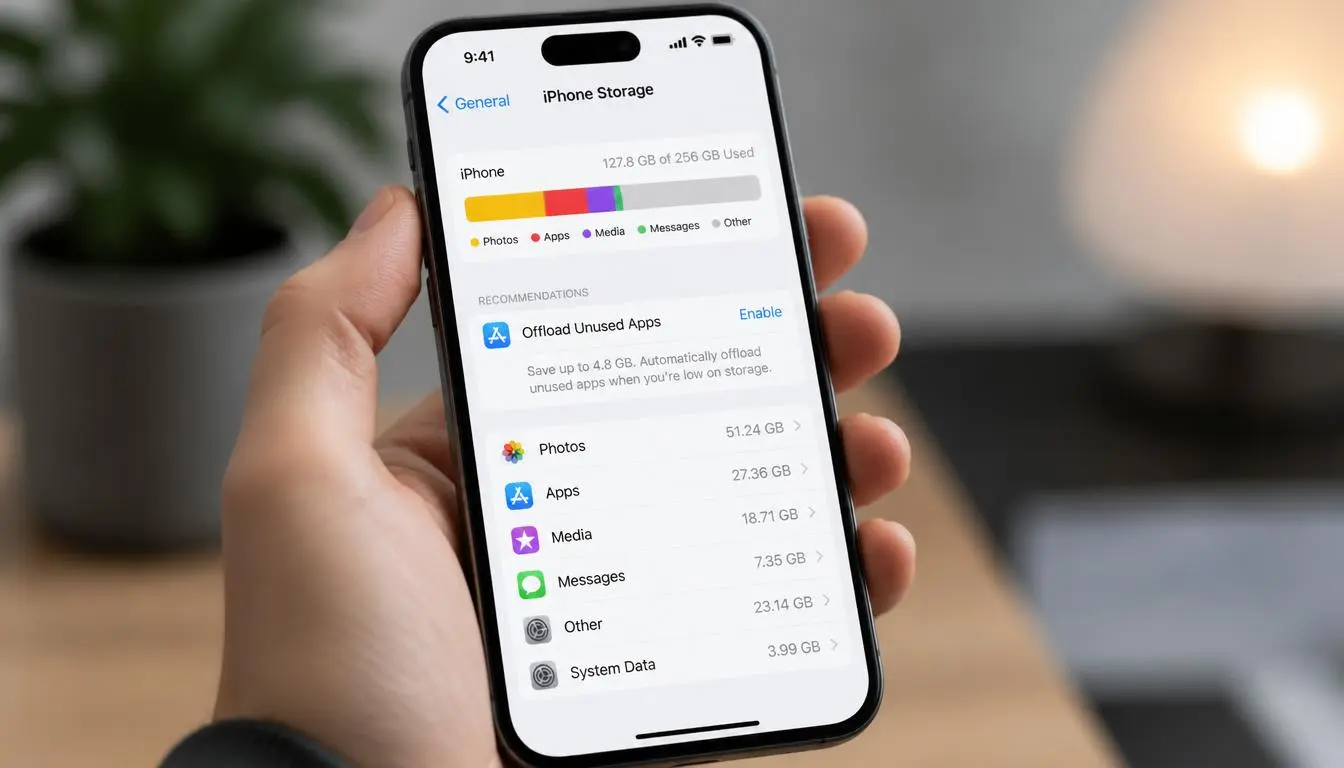
- On an iPhone, go to Settings, then General, then iPhone Storage. You will see a color-coded bar showing how much space is used by photos, apps, messages, and system data, along with a list of your largest individual apps below it.
- On Android, go to Settings, then Storage, though the exact wording can vary slightly by manufacturer. Samsung devices, for example, tend to place this under Settings, Battery and Device Care, then Storage. The same kind of category breakdown appears here, letting you see at a glance whether photos, apps, or something else entirely is the actual culprit.
For most people, the camera roll turns out to be the single biggest space hog, which is exactly where to focus your first real cleanup effort. Apps come in second for most users, followed by messaging data and system files, though the exact order varies depending on how you personally use your phone day to day.
Tackle Your Photos and Videos First
Since photos and videos typically consume more storage than anything else on a phone, this is where clearing space makes the biggest immediate difference.
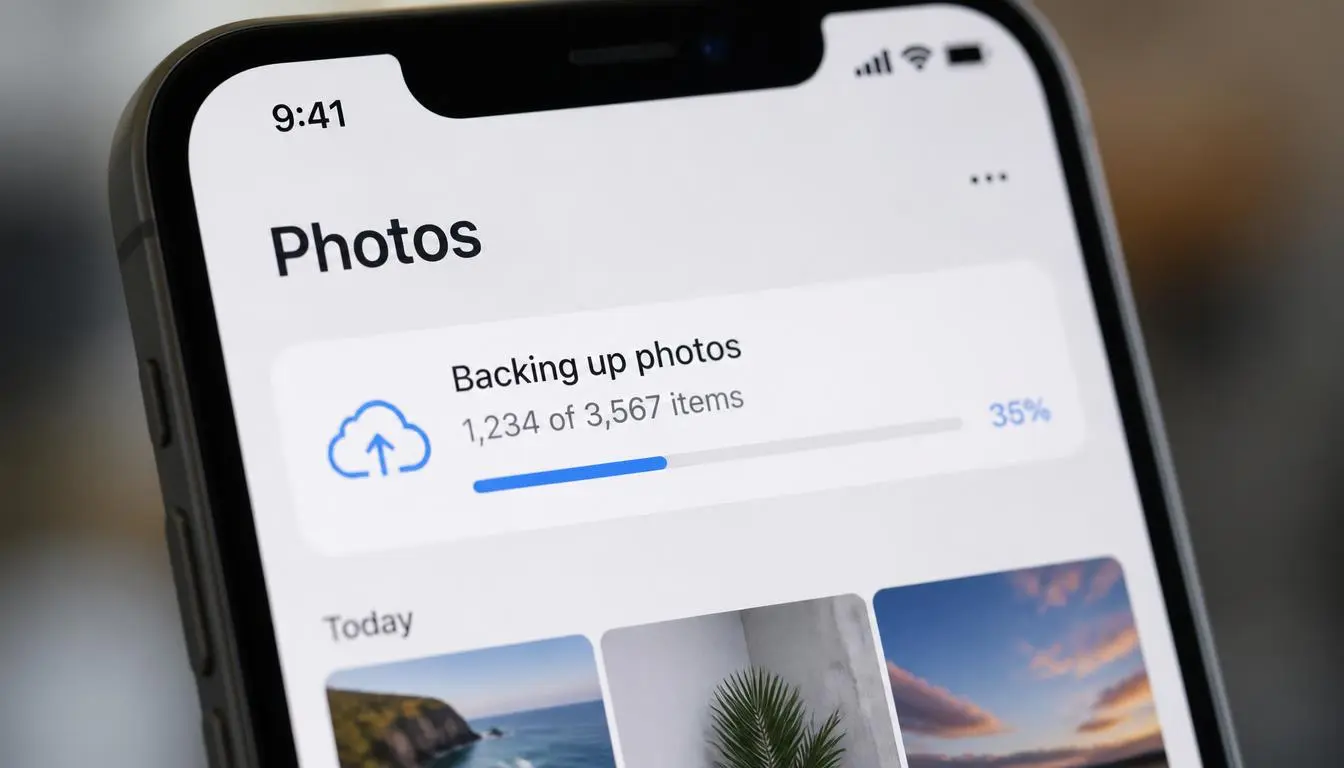
On iPhone, go to Settings, then Photos, and enable Optimize iPhone Storage. This keeps smaller, space-saving versions of your photos on the device itself while storing the full-resolution originals in iCloud, pulling the full version back down automatically only when you need to edit or share it. Apple’s free iCloud tier provides 5GB of storage, which fills up quickly with a large photo library, so this is also a natural point to consider whether a paid storage tier makes sense for your specific situation.
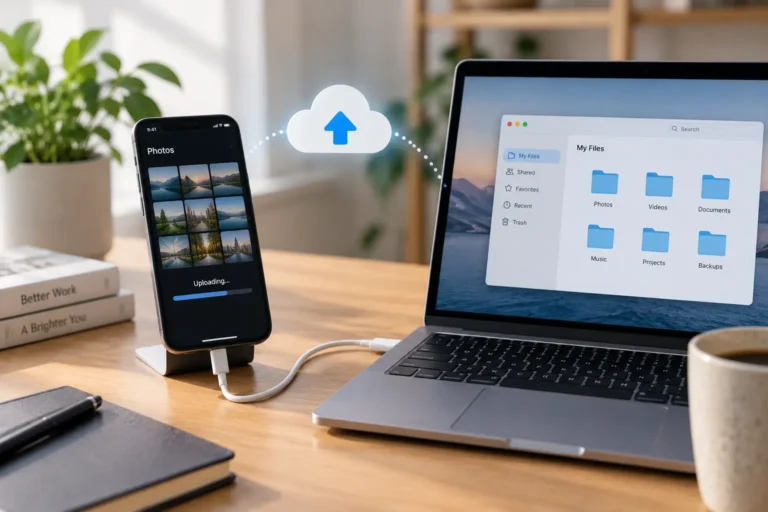
On Android, open Google Photos and use its Free Up Space feature, found under your profile icon. This backs up your photos and videos to your Google account, then offers to delete the local copies already confirmed as safely stored in the cloud. Google’s free tier offers considerably more room than iCloud’s, at 15GB, which often buys meaningfully more breathing room before a paid upgrade becomes necessary. This same process can typically be repeated periodically as your camera roll grows, rather than treating it as a single one time cleanup.
Beyond backing up, take a few minutes to manually delete obvious clutter: duplicate photos, blurry shots you never meant to keep, and old screenshots that served their purpose weeks ago and have simply been sitting there since.
Review and Offload Apps You Rarely Use
Apps, particularly ones with a lot of cached data or downloaded content, can quietly consume a surprising amount of space over time, especially ones you installed once and barely opened since.
On the same iPhone Storage screen mentioned earlier, scroll down to see every app sorted by how much space it occupies. For apps you are not ready to fully delete, choose Offload App instead of a full deletion. This removes the app itself while preserving its documents and data, so reinstalling it later restores everything exactly as you left it, without losing saved progress or settings.
On Android, the Settings, Storage, Apps screen provides a similar breakdown. Uninstalling an app you no longer use, or clearing its cached data specifically if you want to keep the app itself, both free up space with minimal effort. Certain app categories, particularly games and social media apps, tend to accumulate cached data especially quickly, so these are often worth checking first if you are trying to reclaim space without uninstalling anything permanently.
Clear Out What You Are Not Thinking About
A few less obvious storage drains are worth checking specifically, since they build up quietly in the background without ever triggering an obvious notification.
Your browser’s cache, made up of temporary internet files stored to speed up page loading, can accumulate significant space over months of regular use, and clearing it is a quick, low risk way to reclaim some room. Message attachments are another commonly overlooked culprit. On iPhone, the Review Large Attachments option under iPhone Storage surfaces the biggest photos and videos sent through Messages, letting you selectively clear them without losing the actual conversation. Many messaging apps also offer settings to auto delete old media after a set period, and it is worth knowing that clearing this way typically only removes the media from your device’s storage, not from the conversation itself, so nothing important actually disappears from your chat history.
Building a Habit That Prevents This From Happening Again
Clearing space once solves the immediate problem, but storage tends to creep back up gradually unless a few of these habits become routine rather than one time fixes. Enabling automatic photo backup, whether through iCloud or Google Photos, means new photos are protected continuously going forward rather than requiring a manual backup session every time storage runs low again. Periodically reviewing recently installed apps, particularly ones downloaded for a single specific purpose and then forgotten, catches unnecessary storage use before it accumulates into a genuine problem.
It is also worth checking your storage settings shortly after any major software update, since updates occasionally leave behind temporary installation files that can be safely cleared afterward but are easy to overlook if you are not specifically looking for them.
When You Need More Than Cleanup Alone
If you have worked through everything above and space is still consistently tight, a couple of longer term options exist beyond ongoing manual cleanup. Some Android devices support expandable storage through a microSD card, a relatively inexpensive way to add meaningful extra space to devices that support it. Across both platforms, upgrading to a paid tier of your cloud storage provider is another straightforward option, letting you keep a full, high resolution photo and video library backed up without needing to constantly manage local space on the device itself.
Frequently Asked Questions
Will deleting photos from my phone delete them everywhere?
Not if they have already been backed up to the cloud first. Once a photo is confirmed as safely stored in iCloud or Google Photos, deleting the local copy from your device only removes it from that specific phone, leaving the backed up version fully intact and accessible.
Is offloading an app the same as deleting it?
No. Offloading removes the app itself to save space while keeping its data and settings intact, so reinstalling it later restores everything as it was. A full deletion removes both the app and its associated data.
How often should I clear storage on my phone?
There is no strict schedule, but checking in every month or two, particularly reviewing your camera roll and any newly installed apps you no longer use, prevents storage from creeping back up to a critical point unexpectedly. Building this into an existing routine, such as a monthly budget check or a regular Sunday reset, makes it far easier to remember consistently.
Is it safe to clear my browser cache?
Yes. Clearing cached browser data only removes temporary files used to speed up page loading. It does not delete saved passwords, bookmarks, or browsing history unless you specifically choose to clear those as well.