How to Set Up Parental Controls on Family Devices
Every major device already ships with parental controls built in, or offers a free official app for exactly this purpose. Most families never turn them on, not because the setup is difficult, but because nobody has walked them through the actual steps for the specific devices sitting in their own home. Here is exactly how to do it across the three platforms most families use, along with the one setting that determines whether any of it actually holds up.
Before You Start: The One Setting That Matters Most
Every parental control system on every platform depends on a single weak point: the password or passcode protecting the settings themselves. If your child knows or can guess it, they can change or remove every restriction you configure in a matter of seconds. Choose a passcode different from anything your child has seen you type, do not reuse your phone’s unlock code, and never share it, even casually.
Device-level controls, the kind covered in this guide, travel with the device itself, meaning they keep working regardless of which network your child connects to. This is a meaningful advantage over router-based controls, which only apply while a device is connected to your home Wi-Fi.
Setting Up Screen Time on iPhone and iPad
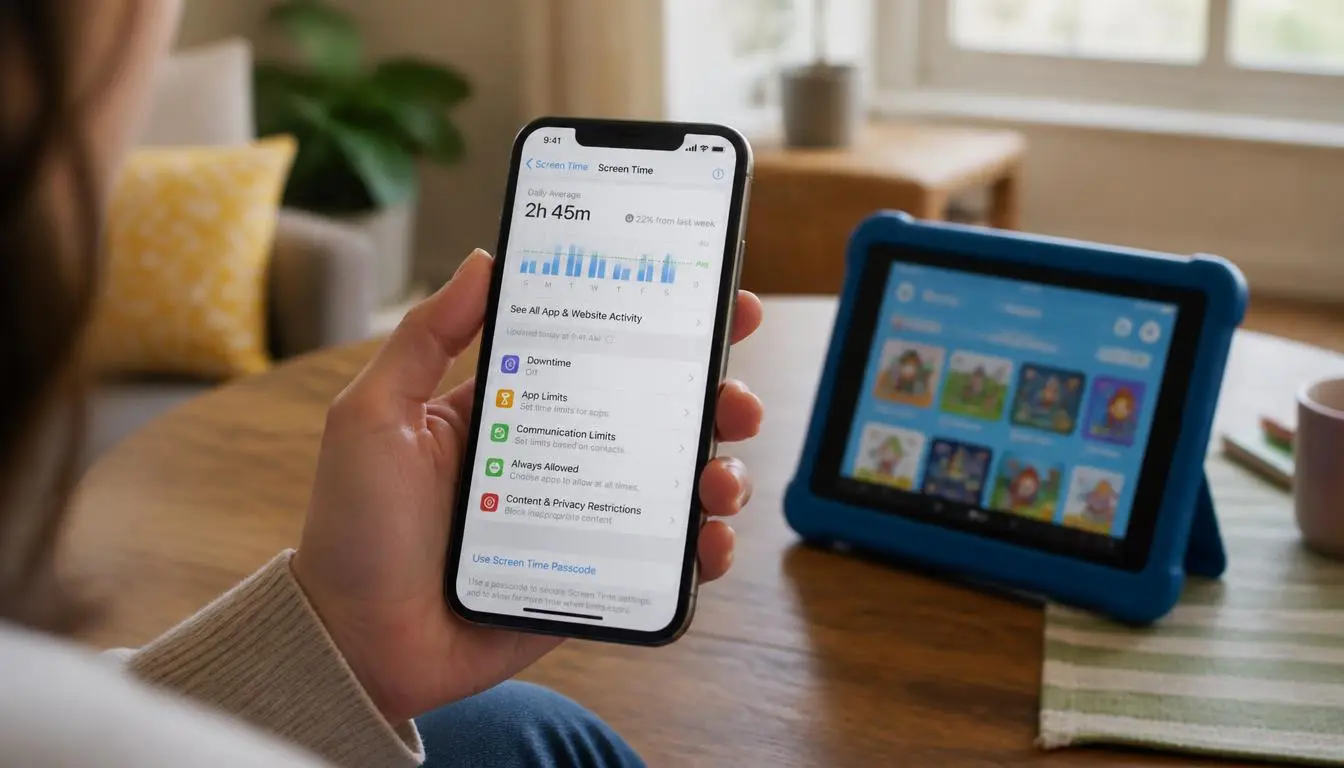
Apple’s built in parental control system is called Screen Time, and it works best when set up through Family Sharing, which lets you manage your child’s settings directly from your own device rather than picking up theirs each time.
- Make sure Family Sharing is already set up, with each family member having their own Apple Account
- On your own device, open Settings, tap Family, then tap your child’s name
- Tap Screen Time and follow the on screen prompts to begin setup
- When prompted, choose a Screen Time passcode that only you know, separate from any other code your child has seen
- Configure Downtime to lock most of the device during set hours, such as overnight
- Set App Limits to cap daily time spent in specific app categories
- Turn on Content and Privacy Restrictions to block explicit content, limit web access, and restrict purchases

Depending on your region and your child’s age, some protections may already be enabled by default and cannot be removed. Once set up, you can adjust everything remotely from your own device rather than needing physical access to your child’s phone each time.
Setting Up Family Link on Android
Android devices use Google Family Link, a free official app that provides a similar set of controls. It works across recent Android versions and, notably, can also extend to Chromebooks.
- Download the Family Link app on your own device
- Create a supervised Google Account for your child, or link their existing one
- Download Family Link for children and teens on your child’s device, then follow the on screen instructions to connect the two
- Set daily screen time limits and a bedtime schedule that locks the device overnight
- Choose which apps your child is allowed to install, approving or blocking requests from the Play Store
- Enable web content filtering to restrict inappropriate sites
Family Link is protected by your Google account password, so make sure that password is strong and known only to you. One honest limitation worth knowing: a determined child could still factory reset their device, which removes the app entirely. This is exactly why the conversation side of online safety matters just as much as the technical settings, something explored more fully in how to protect your kids online as a parent.
Setting Up Family Safety on Windows
Windows computers use Microsoft Family Safety, which is tied to Microsoft accounts rather than the device itself.
- Make sure both you and your child each have a Microsoft Account
- Add your child to your Microsoft family group through the Family Safety app or website
- Open Family Safety and select your child’s name
- Set screen time limits, either per device or as a total across all their Windows devices
- Turn on web filtering and choose which categories of content to block
- Review activity reports periodically to see how your child is actually using the device
An important detail here: these controls only apply when your child logs into Windows using their own Microsoft Account. If they use a different account, or a guest account, the restrictions do not apply, so it is worth confirming they are always signing in the way you set it up.
Browser and Video Platform Controls Are a Separate Layer
Device level controls do not automatically restrict everything inside every individual app. For a browser, look for a dedicated kids mode, several major browsers include one that filters content more strictly than the default. For video platforms, a restricted mode setting filters out content flagged as mature, though supervised accounts, set up through Family Link on Android or Screen Time on iPhone, generally provide stronger, more reliable filtering than the basic restricted mode toggle alone.
Router Level Controls Add One More Layer
If you want an additional layer beyond individual device controls, many home routers and some internet service providers include their own parental control features, allowing you to filter content or schedule internet access for the entire home network. The tradeoff, as noted earlier, is that these only apply while devices are connected to that specific network, so they work best as a supplement to device level controls rather than a replacement for them.
Check That It Is Actually Working
After configuring everything, take a few minutes to confirm each control is genuinely active. On Android, Family Link should show your child’s device as managed. On iPhone, check that Screen Time reflects the limits you set. On Windows, confirm the Family Safety dashboard shows the correct child account and current activity. This simple verification step catches the most common failure: a setting that looked configured during setup but never actually took effect.
Match the Controls to Your Child’s Actual Age
A setup that works well for a young child rarely fits a teenager, and applying identical restrictions across every age tends to create unnecessary friction. For younger children, stricter defaults make sense: tight content filtering, limited app access, and approval required for any new download. As children grow older, gradually loosening specific restrictions, extending screen time limits, or allowing broader app access as they demonstrate good judgment, keeps the controls feeling fair rather than arbitrary.
This gradual adjustment also serves a longer term purpose beyond convenience. A teenager who has been given incrementally more independence, with clear expectations attached, is far better prepared to make sound decisions once controls eventually come off entirely than one who has been kept under strict restrictions right up until the day they leave home. Reviewing your settings every few months, and after any birthday that marks a meaningful shift in maturity, keeps the system realistic for the child actually using it.
Common Mistakes Worth Avoiding
A few missteps come up repeatedly. Sharing or reusing a passcode your child could observe or guess undermines every other setting immediately. Setting controls once and never revisiting them means restrictions that made sense for a nine year old quietly fall out of step with a twelve year old’s actual needs. Applying restrictions without any conversation about why they exist tends to backfire, since children who feel controlled rather than informed often look for workarounds instead of understanding the reasoning. Ask your child what they think of the limits, adjust anything genuinely too restrictive, and treat the setup as an ongoing, evolving arrangement rather than a one time task you finish and forget.