How to Secure Your Home Wi-Fi Network
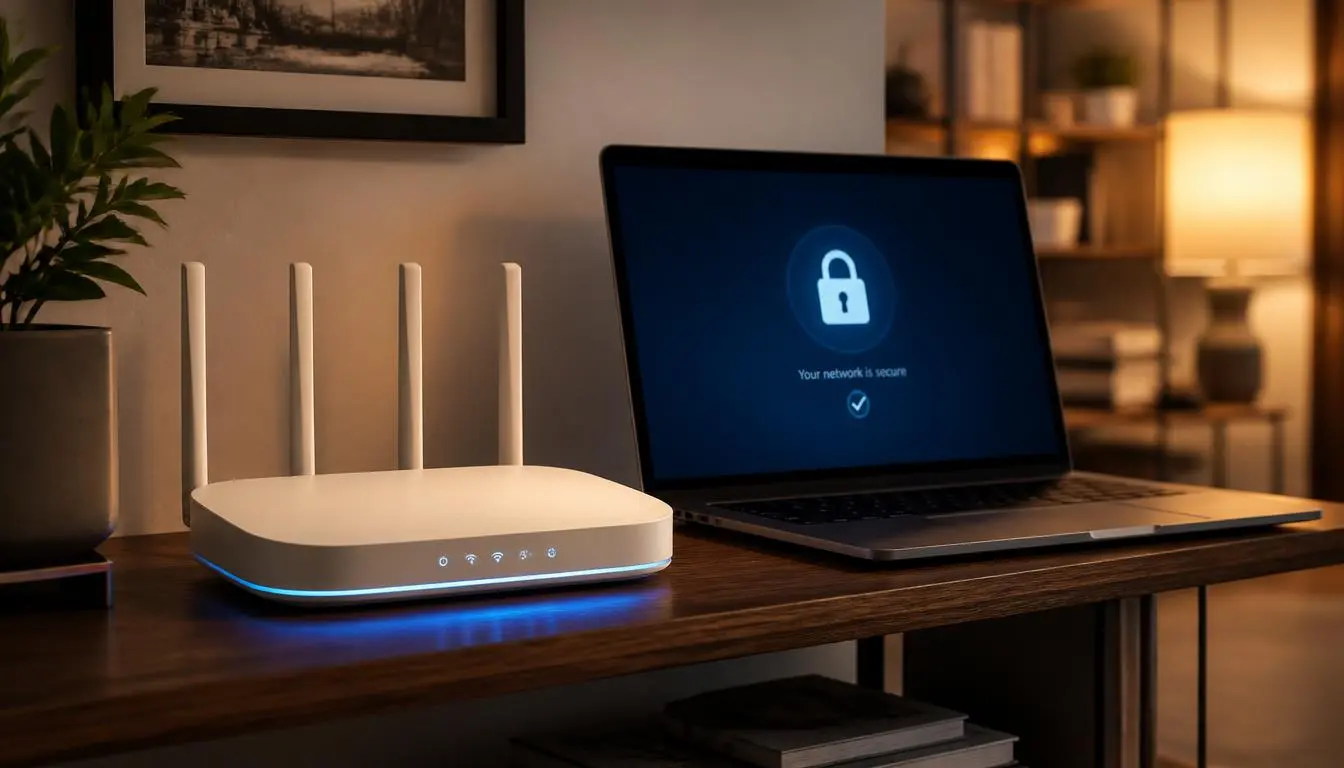
Most home networks are not broken into through some clever hack. They are left open through one setting nobody ever got around to changing. Securing a home Wi-Fi network properly takes about twenty minutes, does not require any technical background, and follows a short, specific order that matters more than most people realize.
Change the Router’s Admin Password First
Here is the detail most guides bury too far down the list: your Wi-Fi password and your router’s admin password are two completely different things. The Wi-Fi password lets a device join your network. The admin password controls every setting on the router itself, including the Wi-Fi password. If someone gets into the admin panel, they can see or change everything else on this list, which is exactly why fixing this one first matters.
Most routers ship with a default admin username and password printed on a sticker, often something like “admin” and “password.” Log into your router’s settings, usually by typing its address into a browser, and change this to something unique and different from your Wi-Fi password. Never reuse one for the other.
1. Turn On Strong Encryption
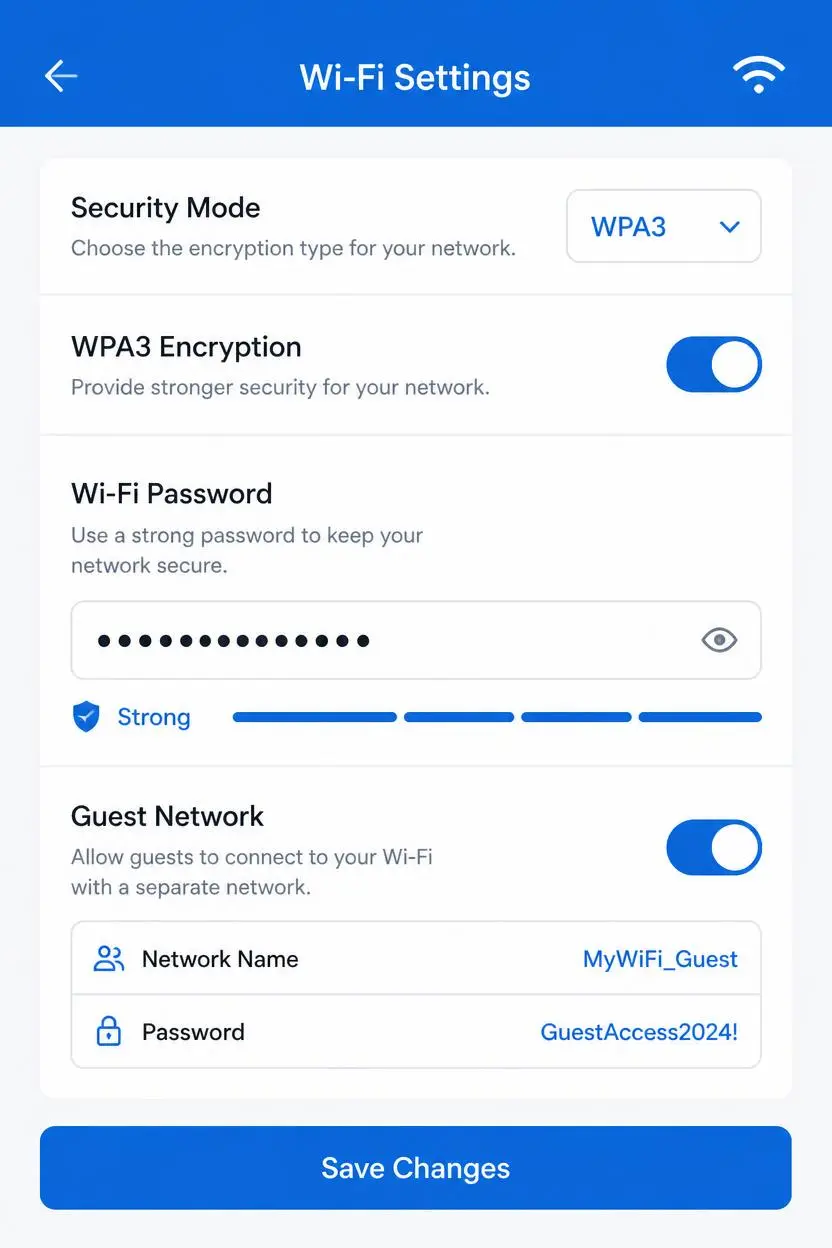
In your router’s wireless security settings, look for an option called WPA3. If your router supports it, turn it on. WPA3 is the current standard and resists modern password-guessing attacks better than older options. If WPA3 is not available, WPA2 with AES encryption is the acceptable fallback. Avoid WEP and plain WPA entirely, since both are outdated and can be broken relatively easily with tools that are freely available online.
If your router only offers WEP or the older WPA, check for a firmware update first, since some routers add WPA2 or WPA3 support through an update rather than needing new hardware. If updating does not add the option, the router itself is likely old enough that replacing it is the more honest fix.
2. Set a Genuinely Strong Wi-Fi Password
Encryption alone does not help much if the password behind it is weak. Aim for at least twelve characters, and avoid anything tied to your name, address, or phone number. A long, memorable passphrase built from several unrelated words is easier to type correctly on a new device than a short jumble of symbols, while still being difficult to guess. The same logic behind memorable passwords applies directly here.
3. Rename the Network, Without Giving Anything Away
Change the default network name, sometimes called the SSID, to something that does not include your name, address, or the router’s brand and model. A default or personally identifiable network name gives an attacker a small head start, either by revealing information about you or by confirming exactly which router model they are dealing with, which can point them toward known vulnerabilities for that specific device.
4. Create a Separate Guest Network
Nearly every modern router supports a second, separate guest network, and turning it on is one of the more effective steps on this entire list. Give it its own unique name and a strong password that is different from your main network. Anyone who does not need full access to your home network, visitors, and especially smart home devices, belongs here instead of on your primary connection.
If your router offers an option often called “AP isolation” or “client isolation,” enable it for the guest network. This keeps guest devices from seeing or reaching each other, so one compromised smart device cannot easily be used to reach everything else in your home.
5. Keep Firmware Updated
Router firmware is the software running the device itself, and vulnerabilities in it get discovered and patched on a regular basis. An unpatched router sitting on outdated firmware is actively targeted by automated scanning tools looking for known weaknesses to exploit. Check your router’s settings for a firmware update option, and turn on automatic updates if the router supports them. If your router has not received an update from its manufacturer in several years, it is likely no longer supported, and replacing it is worth considering.
A Few Smaller Settings Worth Checking
Beyond the core steps above, a handful of smaller settings add another layer of protection. Disable WPS, a feature meant to simplify connecting new devices, since it has known weaknesses that can be exploited to bypass your password entirely. Review whether remote administration is turned on, and disable it unless you specifically manage your router from outside your home network. Keep the router itself in a reasonably secure physical location too, since anyone with hands-on access could reset it back to factory defaults and use the printed default credentials to get in.
Signs Someone Else Might Be on Your Network
A noticeably slower connection with no clear reason, unfamiliar devices listed in your router’s connected devices page, or settings that have changed without your input are all worth investigating. The fix is the same list covered above, executed in order: new admin password, new Wi-Fi password, WPS turned off, and current firmware. Changing the Wi-Fi password alone forces every device, including any uninvited one, to reconnect with the new credentials, which immediately removes anyone who should not be there.
Put It All Together
None of these steps require special expertise, and most take only a few minutes once you are in your router’s settings menu. Working through them in order, starting with the admin password and ending with the smaller extras, closes the gaps that matter most first. Once your own network is locked down properly, the same layered thinking is worth carrying with you onto public Wi-Fi too, since the two environments call for a similar mix of caution and a few good habits.
Frequently Asked Questions
What is the single most important setting for securing a home Wi-Fi network?
Strong encryption, WPA3 if your router supports it or WPA2 with AES otherwise, paired with a genuinely strong password, matters most. Without it, every other setting on this list is protecting a network that was never properly locked in the first place.
Is WPA2 still safe to use if my router does not support WPA3?
Yes, WPA2 with AES encryption is still considered acceptable, particularly as a bridge while older devices on your network catch up to WPA3 support. Avoid WEP and the original WPA, both of which are outdated and meaningfully weaker.
Do I really need a separate guest network if I trust my visitors?
A guest network protects you from more than untrustworthy guests. It also keeps smart home devices, which are frequently less secure than a phone or laptop, separated from your main devices, so a single compromised gadget cannot easily reach everything else.
How often should I update my router’s firmware?
Turning on automatic updates, if your router supports them, is the simplest approach. If it does not, checking every few months is a reasonable habit, and it is worth checking immediately if you hear about a security issue affecting your specific router model.
What should I do if I think someone unauthorized is on my network?
Change your admin password, then your Wi-Fi password, and confirm WPS is disabled. Changing the Wi-Fi password forces every connected device to reauthenticate, which immediately disconnects anyone who should not have access.